

.png)
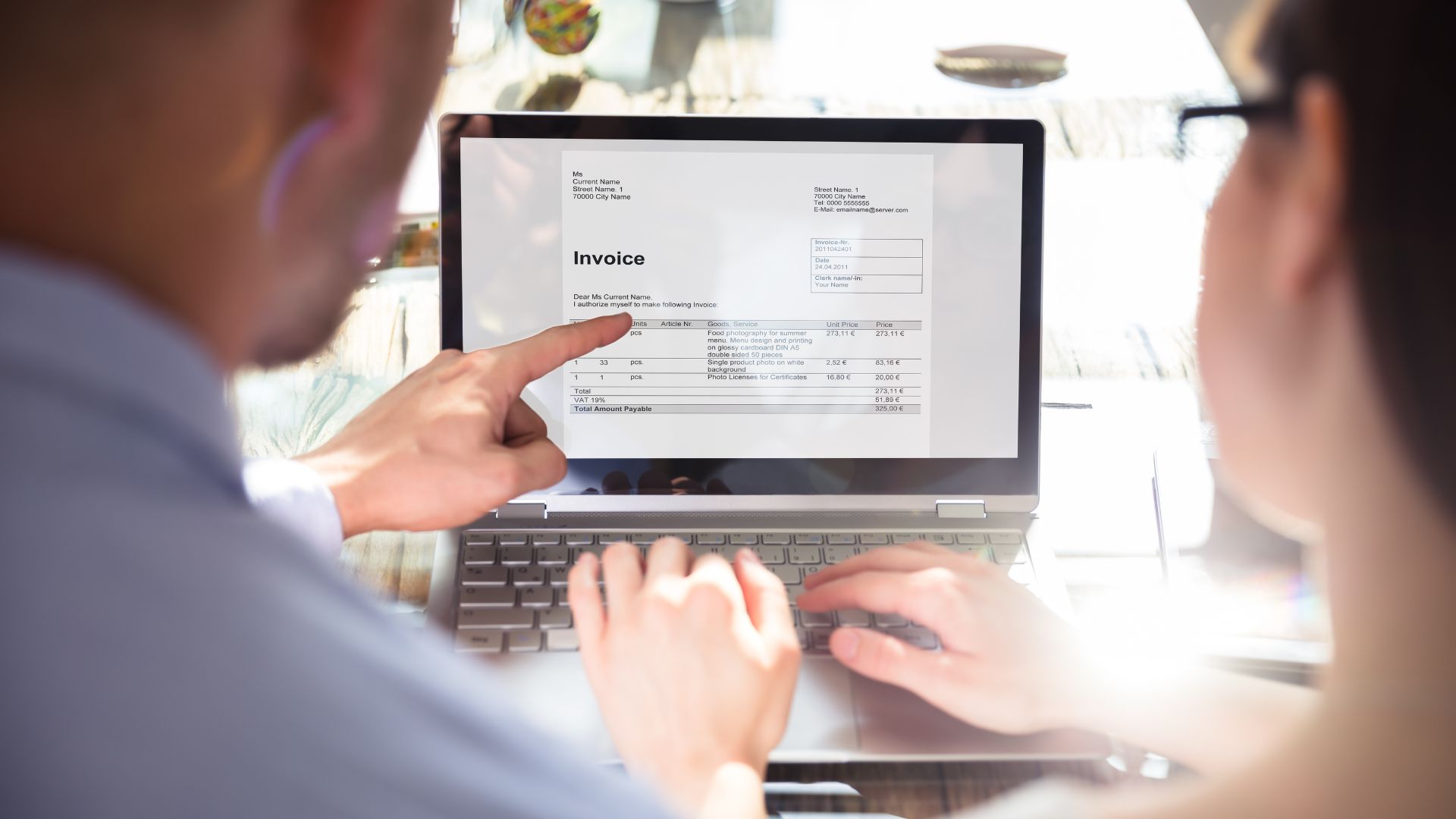
Invoice processing is the most expensive manual task in accounts payable. An AP clerk receives an invoice by email, opens it, reads the line items, looks up the associated purchase order in the ERP, checks that the quantities and amounts match, and either posts it for payment or routes it to someone to resolve a discrepancy.
For a manufacturer processing 200 invoices per month, that sequence adds up to 15 to 25 hours of AP time per month. None of it requires judgment on the standard invoices. All of it is automatable.
This tutorial builds a complete invoice processing workflow in n8n: email trigger, PDF data extraction, PO lookup in the ERP, 3-way match logic, exception routing, and write-back to the accounting system on match.
An n8n workflow that:
Email inbox dedicated to invoice receipt. Create a dedicated inbox (invoices@yourcompany.com) and configure it as the target for vendor invoice submissions. This keeps invoice emails separated from general AP communication and makes the trigger filter reliable.
Gmail or Microsoft Outlook credentials in n8n. The workflow monitors this inbox using n8n's Gmail or Outlook node.
ERP with REST API access for PO lookup and receipt data. The same API credentials used in the PO approval tutorial apply here. You need read access to purchase orders and goods receipts.
Accounting system with API access for invoice posting. QuickBooks Online (REST API), NetSuite (REST Record API), and Sage Intacct (XML API) all support programmatic bill creation. If your ERP handles AP directly (as NetSuite and SAP B1 do), the PO lookup and the invoice post happen in the same system.
n8n AI/LLM node or PDF extraction setup. Extracting structured data from PDF invoices requires either n8n's Information Extractor node (uses an LLM to extract fields from unstructured text) or a PDF-to-text conversion step followed by regex or code-based parsing. The tutorial uses the Information Extractor node for clarity.
OpenAI or Anthropic API key (for the Information Extractor node). Add the credential in n8n under Credentials before building.
Gmail Trigger (new email in invoices inbox)
→ IF node (check for PDF attachment)
→ Extract from File node (PDF to text)
→ Information Extractor node (parse invoice fields)
→ HTTP Request (GET PO from ERP by PO number)
→ HTTP Request (GET receipt from ERP by PO number)
→ Code node (run 3-way match logic)
→ IF node (match or exception)
→ Match path: HTTP Request (POST bill to accounting system)
→ Gmail (send vendor acknowledgment)
→ Exception path: Google Sheets (log exception)
→ Gmail (notify AP team with details)
Add a Gmail Trigger node. Configure it to watch the dedicated invoices inbox and trigger on new emails. Set the polling interval to every 5 to 15 minutes depending on your invoice volume.
Add a label filter if your invoices inbox receives non-invoice emails. A Gmail label of "Invoice" applied by a filter rule on the vendor email domain keeps the trigger focused.
Add an IF node after the trigger. Configure the condition to check that the email has an attachment and that the attachment filename ends with .pdf (or .PDF).
If no PDF is found, route the False branch to a Gmail node that sends the AP team a notification: the email was received but no PDF attachment was found. This prevents silently dropped invoices.
Add an Extract from File node. Select the PDF attachment from the email data. This node converts the PDF to plain text that can be processed by subsequent nodes.
Test this step by manually executing it with a sample invoice email. Confirm that the output text contains the vendor name, invoice number, PO number, and line item details. If the PDF is image-based (a scanned document rather than a digital PDF), the text extraction will return empty. For scanned invoices, add an OCR step using an HTTP Request to a Google Cloud Vision or AWS Textract endpoint before the Information Extractor.
Add an Information Extractor node. Connect it to an OpenAI or Anthropic credential. In the schema definition, specify the fields to extract:
{
  "vendorName": "string",
  "invoiceNumber": "string",
  "invoiceDate": "string (YYYY-MM-DD)",
  "poNumber": "string",
  "lineItems": "array of {description, quantity, unitPrice, lineTotal}",
  "invoiceTotal": "number",
  "taxAmount": "number",
  "currency": "string"
}
Provide two or three example invoice formats in the node's prompt to improve extraction accuracy across different vendor invoice layouts. Different vendors format invoices differently: the LLM handles this variability better than regex.
Run the node with a sample invoice and confirm that all fields extract correctly. Pay particular attention to the poNumber field: this is the key used for the ERP lookup in the next step.
Add an HTTP Request node to retrieve the PO from the ERP using the extracted poNumber.
For NetSuite, the endpoint is:
GET /services/rest/record/v1/purchaseOrder?q=tranId IS {{ $json.poNumber }}
For SAP Business One:
GET /b1s/v1/PurchaseOrders?$filter=DocNum eq {{ $json.poNumber }}
The response contains the PO line items, quantities, unit prices, and expected delivery dates. Extract the line items from the response and store them as a variable for the match step.
Add a second HTTP Request node to retrieve the goods receipt associated with the PO.
For NetSuite: query the ItemReceipt record by the PO internal ID returned in Step 5. For SAP B1: query PurchaseDeliveryNotes filtered by the BaseEntry (PO DocEntry).
The receipt data confirms what was actually received: quantities and any partial deliveries. A 3-way match requires the invoice, the PO, and the receipt.
Add a Code node to compare the three data sources. The match logic:
const invoice = $('Information Extractor').first().json;
const po = $('PO Lookup').first().json.lineItems;
const receipt = $('Receipt Lookup').first().json.lineItems;
const tolerance = 0.02; // 2% variance allowed

let exceptions = [];

invoice.lineItems.forEach(invoiceLine => {
  const poLine = po.find(l => l.itemCode === invoiceLine.itemCode);
  const receiptLine = receipt.find(l => l.itemCode === invoiceLine.itemCode);

  if (!poLine) {
    exceptions.push({ type: 'PO_LINE_NOT_FOUND', item: invoiceLine.description });
    return;
  }

  const amountVariance = Math.abs(invoiceLine.lineTotal - poLine.lineTotal) / poLine.lineTotal;
  const qtyMatch = invoiceLine.quantity <= receiptLine?.quantity;

  if (amountVariance > tolerance || !qtyMatch) {
    exceptions.push({
      type: 'AMOUNT_OR_QTY_MISMATCH',
      item: invoiceLine.description,
      invoiced: invoiceLine.lineTotal,
      poAmount: poLine.lineTotal,
      receivedQty: receiptLine?.quantity,
      invoicedQty: invoiceLine.quantity
    });
  }
});

return [{ json: { matched: exceptions.length === 0, exceptions, invoice } }];
Adjust the tolerance percentage to match your AP policy. Common range: 1% to 3% for unit price variance.
Add an IF node checking {{ $json.matched }}.
Match path: Add an HTTP Request node to create the bill in your accounting system. For QuickBooks Online, POST to the /v3/company/{companyId}/bill endpoint with the invoice data mapped to QBO's bill schema. For NetSuite, POST to the VendorBill record. After posting, add a Gmail node to send the vendor a receipt confirmation.
Exception path: Add a Google Sheets node to log the exception details (vendor, invoice number, exception type, specific lines with mismatches). Then add a Gmail node to notify the AP team with the full exception details and a link to the invoice for manual review.
PO number format inconsistency. Vendors sometimes reference your PO number differently on their invoice (PO-1234 vs. 1234 vs. P01234). Add normalization logic in the Code node before the ERP lookup to strip non-numeric characters and leading zeros. A failed PO lookup routes the invoice to the exception queue, which the AP team would rather resolve than have the automation fail silently.
Multi-page invoices. The Extract from File node handles multi-page PDFs, but very long invoices may exceed the LLM's context window for the Information Extractor. Set a maximum page count in your vendor communication (most standard invoices are 1 to 2 pages) and add a check for PDF page count before the extraction step.
Partial receipts. If a PO has been partially received, the receipt quantity will be less than the PO quantity. The match logic above handles this correctly (invoice quantity must be less than or equal to received quantity), but partial receipts generate exceptions until the remaining goods arrive. This is expected behavior: flag partial receipt invoices for AP review rather than auto-posting them.
A dedicated AP automation platform (Tipalti, Bill.com, Stampli) handles edge cases, vendor portal management, and multi-entity AP at scale. For manufacturers processing more than 500 invoices per month with complex multi-entity requirements, a dedicated platform is worth evaluating.
For manufacturers processing under 500 invoices per month with a single ERP, this n8n workflow handles the majority of standard-match invoices and routes exceptions cleanly. No additional platform license required.
The Flow Kaizen guide covers the AP automation prerequisites checklist, including which ERP API modules to confirm, how to test the 3-way match logic with historical invoice data before going live, and what a manageable exception rate looks like in the first 30 days.

.png)
