

.png)
Your checkout page is where B2B customers complete their orders. For manufacturing and wholesale businesses, this page needs to handle complex requirements like purchase orders, net terms, shipping instructions, and account-specific pricing. Shopify's Checkout Blocks feature lets you customize the checkout experience without code, making it easier to arrange app blocks and add functionality that your B2B customers need.
Experiment with Checkout Blocks before implementing them in your store using the Checkout Blocks Playground. This interactive tool lets you see how different blocks look and behave in a checkout environment, helping you plan your customization strategy.
Checkout Blocks are modular components you can add to your Shopify checkout page. They let you customize the checkout experience by adding, removing, and rearranging sections without editing code. Blocks can be native Shopify features or come from apps installed in your store.
Shopify recently made it easier to arrange app blocks in checkout and customer accounts. You can now drag and drop blocks to reorder them, making it simpler to create a checkout flow that matches your B2B workflow.
To start using Checkout Blocks, you need to install the official Shopify Checkout Blocks app from the Shopify App Store.
Tip: Before installing, you can experiment with Checkout Blocks using the Checkout Blocks Playground to see how different blocks work and plan your customization strategy.
1. Navigate to the App Store: Go to the Shopify Checkout Blocks app page in your Shopify admin or visit the App Store directly.
2. Install the App: Click the "Install" button on the app page. The app is free and developed by Shopify, so you can install it with confidence.
3. Grant Permissions: The app will request necessary permissions to customize your checkout. Review and approve the permissions to complete installation.
4. Access Checkout Customization: Once installed, you can access checkout customization through your Shopify admin. Navigate to Apps > Checkout Blocks to start adding and arranging blocks. You can also access checkout settings through Settings > Checkout.
The Shopify Checkout Blocks app works with:
Note that Shopify Plus merchants have access to additional customization options, including custom checkout fields and more advanced block configurations.
B2B checkout differs from B2C in several ways:
Checkout Blocks let you add these features without building custom checkout extensions. This saves time and ensures your checkout stays compatible with Shopify updates.
Before adding third-party apps, check what Shopify offers out of the box. Note that Shopify B2B features are available only on the Shopify Plus plan.
Shopify Plus includes native support for purchase order (PO) numbers. Customers can add PO numbers to orders during checkout, and this feature is available for B2B customers. However, enabling this is typically managed through your Shopify Plus B2B settings rather than a simple toggle in checkout settings. The PO number field appears automatically for B2B customers once configured.
Shopify's native checkout includes a general notes field where customers can add shipping instructions. This works for basic delivery instructions, but for more structured or specific data collection (such as dock scheduling, delivery windows, or formatted fields), you might need to use apps like Checkout Blocks to add custom fields that collect this information in a more organized way.
Shopify Plus allows B2B customers to use customer accounts where they can save payment methods (including vaulted credit cards), shipping addresses, and view order history. This helps reduce friction for repeat purchases by eliminating the need to re-enter information for each order.
Shopify supports multiple payment methods for B2B:
Important Note: Buy now, pay later options like Shop Pay Installments are not compatible with Shopify B2B. If you want to customize payment methods for B2B customers beyond what's available natively, you can use apps like Checkout Blocks or the Payment Customization Function API.
When native features aren't enough, app blocks extend checkout functionality. The Shopify Checkout Blocks app provides dynamic blocks that you can customize and display conditionally based on your B2B needs.
Apps can add structured PO number fields with validation, automatic email notifications to your team, and integration with your ERP system.
Shopify Plus merchants can add custom fields directly through Checkout Blocks to collect additional information. These fields can be saved as order metafields, attributes, or notes. Common B2B custom fields include:
Some apps add approval checkpoints directly in checkout. Orders can be held for review based on order value, customer tier, or other criteria.
Apps can display payment terms, calculate due dates, and integrate with accounting systems for invoice generation.
The Shopify Checkout Blocks app provides several pre-built templates to help you get started quickly. These templates are dynamic blocks that you can customize for your B2B needs. You can also add static content blocks directly in the checkout and accounts editor.
In addition to the dynamic template blocks, you can add static content blocks directly in the checkout and accounts editor. Static blocks are useful for content that doesn't need conditional display rules and should appear consistently in checkout.
To add a static content block:
1. Navigate to Apps > Checkout Blocks in your Shopify admin
2. Open the checkout and accounts editor
3. Under Checkout Blocks, select the Static content block type
4. Select the page where the block should appear (checkout, order status, thank you page, etc.)
5. Configure the block's settings (content, styling, positioning)
6. Save your changes
Static content blocks are ideal for:
Unlike dynamic template blocks, static content blocks appear on the selected pages without conditional display rules, making them perfect for consistent messaging that all customers should see.
The following templates are dynamic blocks that you can customize and apply display rules to:
The Banner template lets you display promotional messages, important notices, or call-to-action content in your checkout. This is useful for:
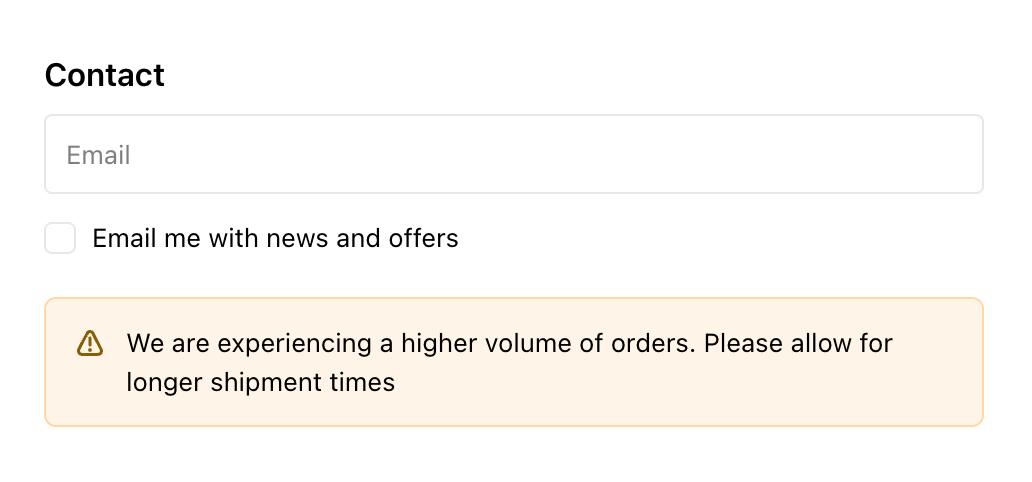
Banners can be styled to match your brand and positioned strategically in the checkout flow.
The FAQ Accordion template creates an expandable question-and-answer section in checkout. This helps reduce support inquiries by answering common questions directly in the checkout process. Use it for:
The accordion format keeps the checkout clean while providing access to detailed information when customers need it.
The Support Buttons template adds clickable buttons that link to support resources. This is valuable for B2B customers who might need help during checkout. Use it to provide:
Support buttons help customers get assistance without leaving the checkout page, reducing abandonment.
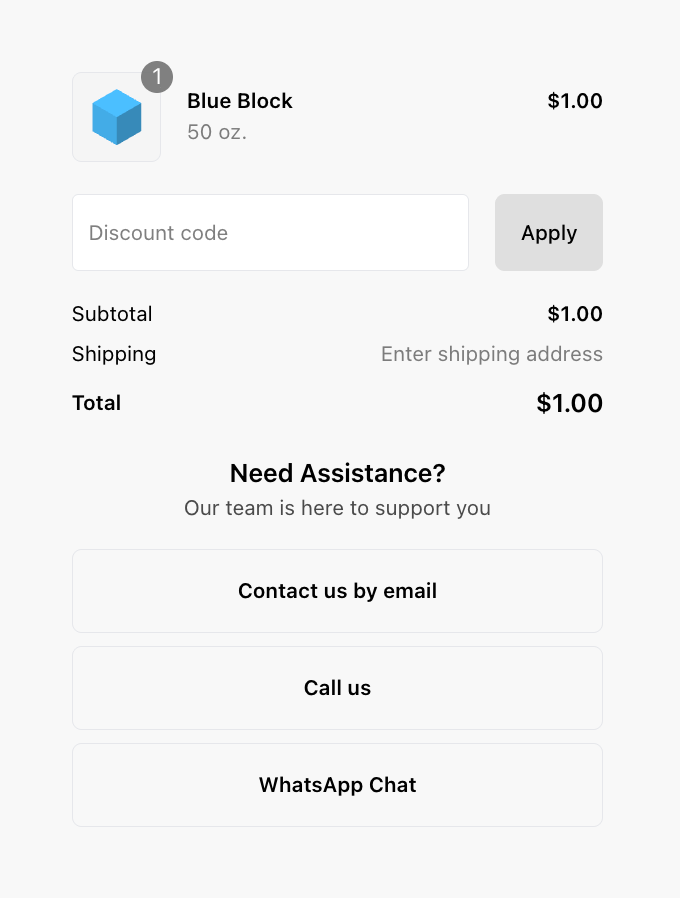
The Blank template gives you a customizable starting point to create custom fields or content blocks. Use it when you need to collect additional customer information that doesn't fit the other pre-built templates.
With the blank template, you can configure:
Important Limitations:
The Blank template does not support:
For Advanced Customization:
If you need specialized B2B workflows, custom HTML, advanced styling, or unique layouts, you'll need to combine Checkout Blocks with:
The Blank template provides flexibility for custom data collection within Checkout Blocks' supported input types, but for more advanced customization, consider leveraging Shopify Plus capabilities and developer resources.
Shopify Plus merchants have access to additional checkout block features that aren't available on other Shopify plans:
The Line item edit block is a Shopify Plus-exclusive feature that allows customers to modify order line items directly from the thank you and order status pages. This is particularly valuable for B2B customers who may need to adjust quantities, add items, or make changes after placing an order.
Key features:
Use cases for B2B:
To add the Line item edit block:
1. Navigate to Apps > Checkout Blocks in your Shopify admin
2. Open the checkout and accounts editor
3. Select either the Thank you page or Order status page
4. Under Checkout Blocks, add the Line item edit block
5. Configure the block settings as needed
6. Save your changes
This feature is especially useful for manufacturing and B2B businesses where customers often need to make adjustments to orders after placement, reducing the need for order cancellations and reorders.
Shopify Plus merchants can create custom order and shipping discounts using the Checkout Blocks app, which allows detailed conditional rules to tailor discounts to your B2B pricing needs.
Note: Custom discounts using Checkout Blocks are available only on Shopify Plus.
Custom Order Discounts:
You can create discounts based on various conditions such as:
Custom Shipping Discounts:
Shipping discounts can be configured with conditions like:
Setting Up Custom Discounts:
1. From your Shopify admin, go to Apps > Checkout Blocks
2. Click on the Discounts section
3. Click Add discount and choose either:
- Amount off order (for order discounts)
- Amount off shipping (for shipping discounts)
4. Set up your discount value (percentage or fixed amount)
5. Configure conditional rules based on:
- Cart value
- Customer segments
- Products
- Other criteria as needed
6. Optionally set:
- Time limits
- Usage restrictions
- Customer eligibility
7. Save and activate the discount
These custom discounts are especially useful for B2B businesses to implement:
Shopify Plus merchants can set minimum and maximum order value limits to control when customers can complete checkout. This is useful for enforcing B2B policies like minimum order sizes or credit risk management.
Minimum Order Value:
Set a minimum order value that customers must meet before they can complete checkout. This helps:
Maximum Order Value:
Set a maximum order value to:
For B2B businesses, order value limits help enforce business rules while providing clear feedback to customers about order requirements.
Shopify Plus merchants can customize delivery methods in checkout by hiding, renaming, or reordering them based on rules and conditions. This helps tailor shipping options to customer needs and business strategies.
Hide Delivery Methods:
Hide specific shipping methods from certain customers or situations:
Rename Delivery Methods:
Customize shipping method names to match your brand or provide clarity:
Reorder Delivery Methods:
Control the order in which shipping methods appear:
These customizations help create a checkout experience that matches your B2B shipping strategy and customer expectations.
Similarly, payment methods can be hidden, renamed, or reordered for specific customers, order values, or other conditions. This is especially useful for B2B customers to prioritize options like ACH or net terms.
Hide Payment Methods:
Control which payment methods are available:
Rename Payment Methods:
Customize payment method names for clarity:
Reorder Payment Methods:
Prioritize payment methods:
For B2B businesses, this helps ensure customers see the most appropriate payment options first, such as ACH or net terms for qualified customers.
Shopify Plus merchants can create address validation rules to ensure shipping addresses meet carrier and regional requirements, reducing errors.
Benefits:
Address validation is especially important for B2B businesses shipping to multiple countries or regions with different address format requirements.
Shopify Plus merchants can add custom fields to checkout to collect extra customer information. These fields can save data as order metafields, order attributes, or order notes.
Types of Custom Field Inputs:
Supported input types include:
Pre-built Custom Field Templates:
Shopify provides pre-built templates to speed up custom field creation:
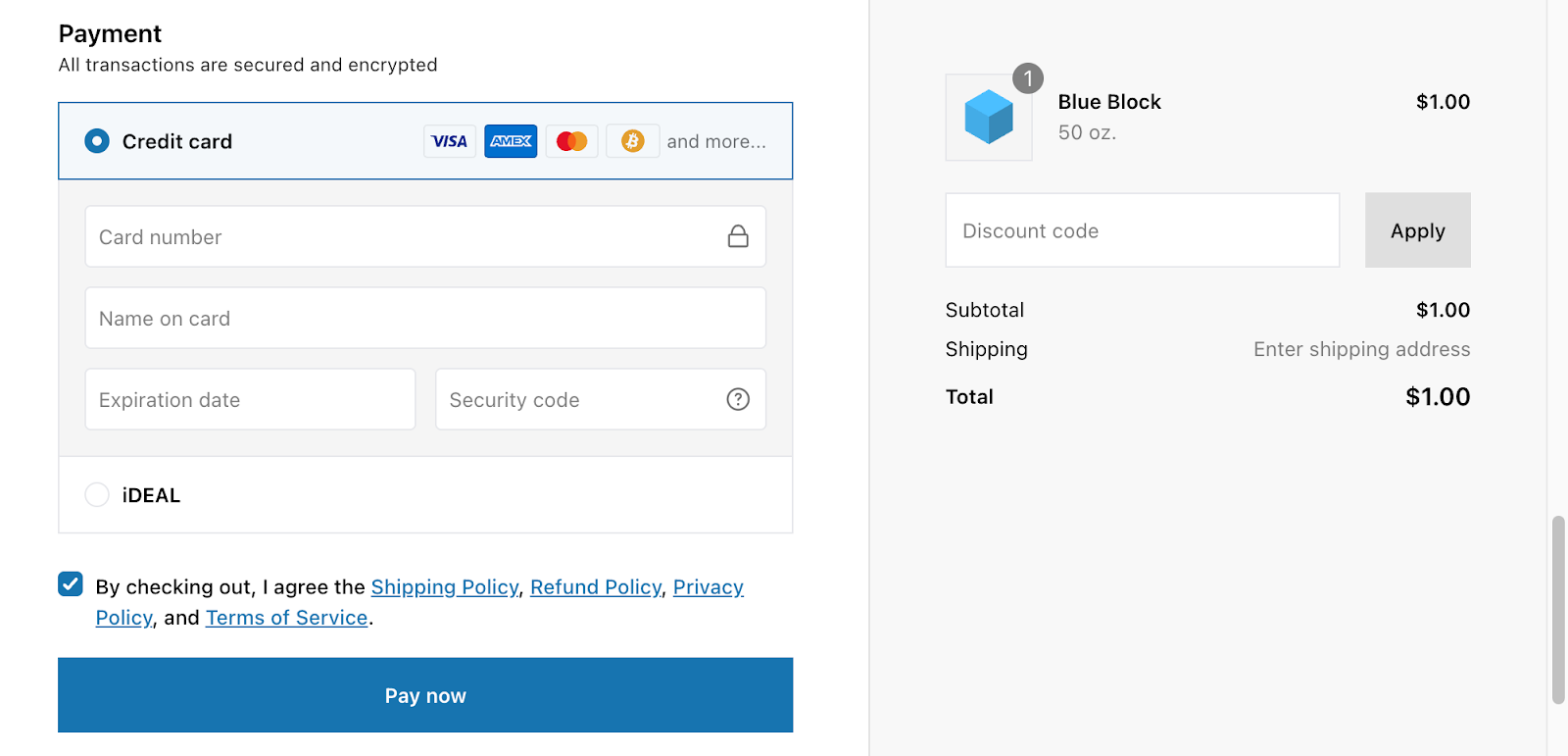
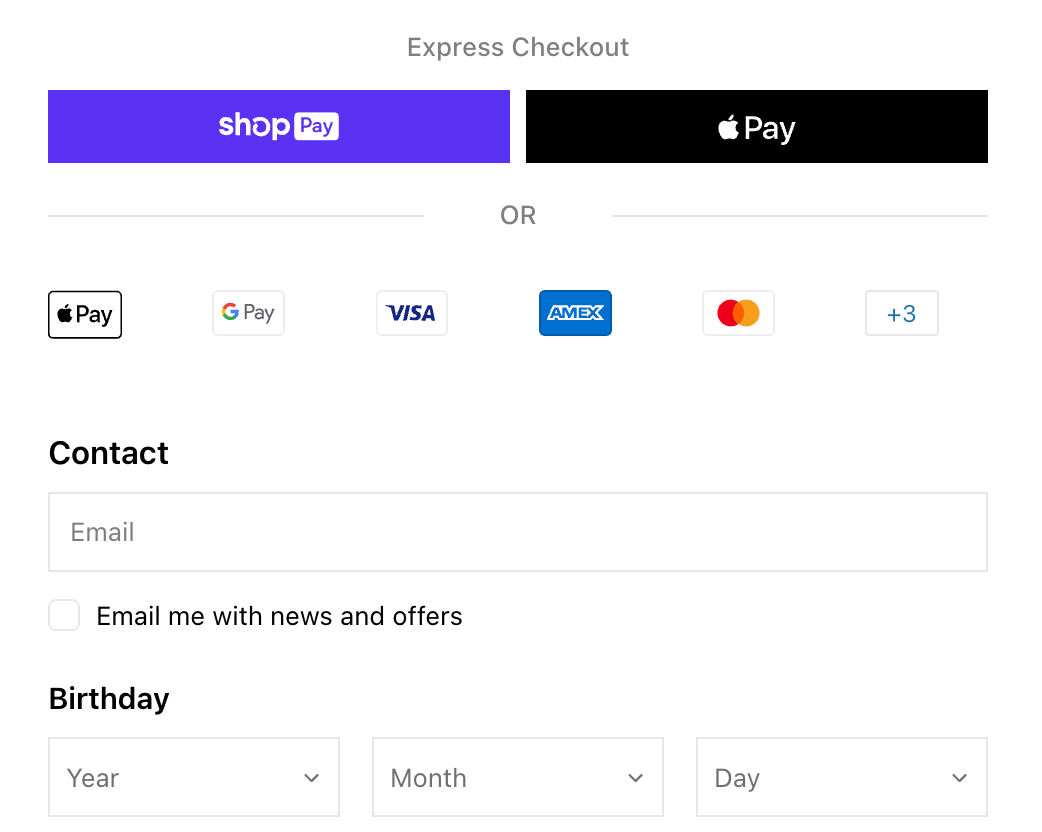
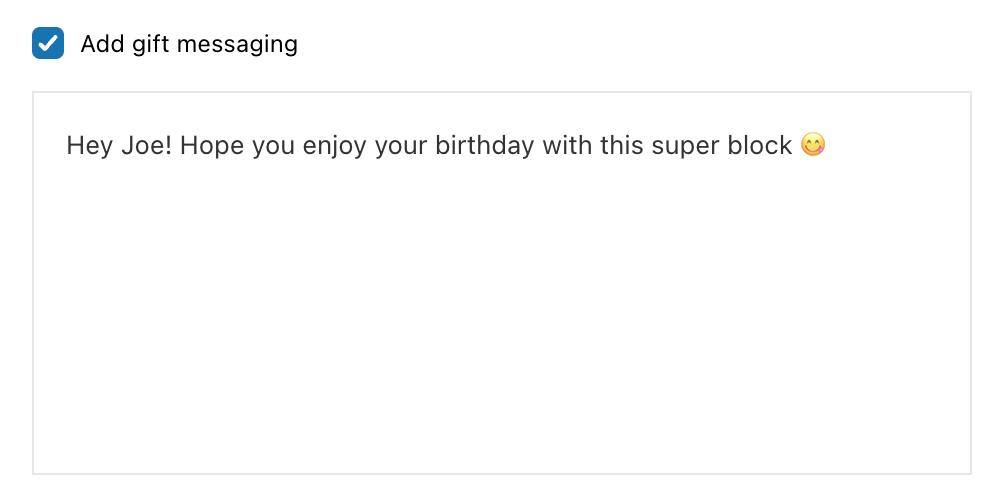
These templates can be customized or used as starting points for your own custom fields.
Use Cases for B2B:
Best Practices for Custom Fields:
Custom fields help B2B businesses collect the specific information they need for order processing and fulfillment. For detailed instructions, refer to Shopify's Custom Field Block documentation.
Note: All of these Shopify Plus features (Line Item Edit, Custom Discounts, Order Value Limits, Delivery/Payment Method Customizations, Address Validation, and Custom Fields) are part of Shopify Plus's Checkout Blocks app, which provides powerful checkout customization capabilities for B2B and advanced use cases.
One of the most powerful features of Checkout Blocks is the ability to set display rules. These rules control when and where blocks appear in checkout, allowing you to create personalized experiences for different customers and situations.
Show blocks based on products in the cart:
For example, you might show a FAQ accordion about installation requirements only when customers have technical products in their cart.
Control block visibility based on cart contents:
This is useful for B2B businesses where order value affects shipping, payment terms, or available options.
Display blocks based on shipping method or destination:
For manufacturing businesses, this helps communicate shipping-specific information relevant to each customer's location.
Show blocks based on billing information:
This is particularly valuable for B2B businesses that serve both wholesale and retail customers, or have different customer tiers with varying terms and options.
You can combine multiple display rules to create sophisticated conditional logic. For example:
This flexibility lets you create highly targeted checkout experiences that match your B2B workflow and customer needs.
The order of checkout blocks affects the customer experience. Follow this flow:
1. Cart summary (always first)
2. Customer information (email, shipping address)
3. Shipping method selection
4. B2B-specific fields (PO numbers, shipping instructions)
5. Payment information
6. Order review
7. Terms and conditions
8. Complete order button
Drag and drop blocks in the checkout editor to match this flow. Test the checkout on mobile devices, as B2B buyers often place orders from tablets or phones.
Don't add unnecessary blocks. Every additional field increases checkout abandonment. Only include fields that are essential for order processing.
Not all B2B customers use purchase orders. Make the PO field optional unless your business requires it. You can make it required for specific customer segments using Shopify's customer segmentation.
B2B buyers use mobile devices. Ensure all blocks are mobile-friendly and don't break the checkout flow on smaller screens.
Take advantage of display rules to show relevant content only when needed. For example:
This keeps checkout clean for simple orders while providing additional information when customers need it. Avoid showing every block to every customer, as this creates clutter and increases abandonment.
When adding app blocks, ensure they integrate with your ERP or order management system. Blocks that collect data but don't sync it create manual work for your team.
Checkout Blocks give you flexibility to customize B2B checkout without code. Start with Shopify's native features, then add app blocks only when needed. Arrange blocks in a logical order that matches your customers' workflow, and test thoroughly on all devices.
For manufacturing and B2B businesses, a well-configured checkout reduces order errors, speeds up fulfillment, and improves customer satisfaction. Take advantage of Shopify's improved block arrangement tools to create a checkout experience that works for your business and your customers.

.png)
